
Troubleshooting
Why Your IPTV App Is Not Working and How to Fix It
Is your IPTV app not working? Learn simple fixes for login errors, buffering, empty channels, app crashes, EPG problems, and device issues.
First Response When an IPTV App Stops Working
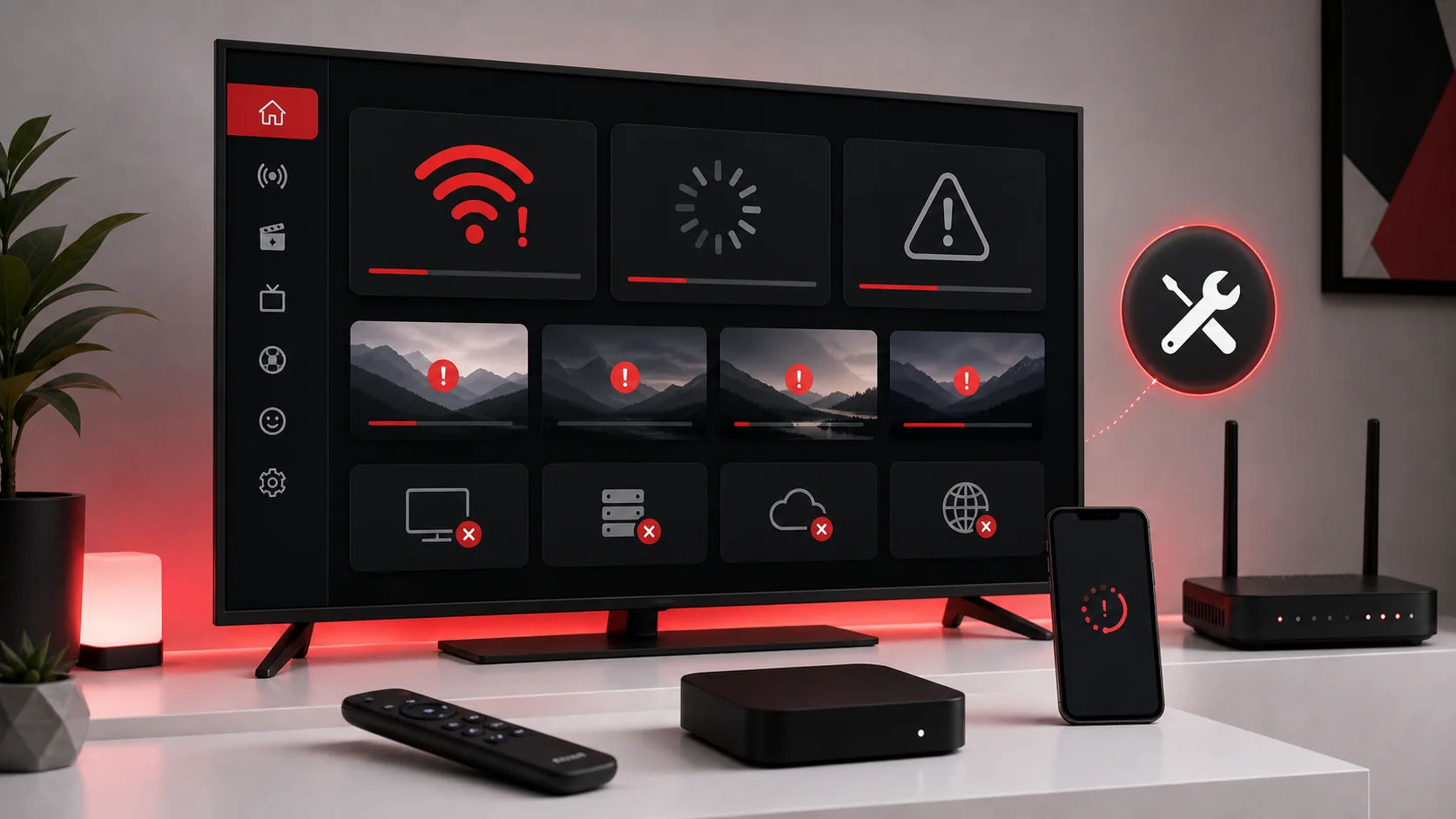
When an IPTV app not working message or blank screen appears, do not reset everything immediately. Many problems are temporary or caused by one small setting. A calm troubleshooting flow protects your saved profile and makes it easier for support to understand what happened.
Start by identifying the symptom. Is the login rejected? Are categories empty? Does the app open but buffer? Does EPG fail while playback works? Does the app crash before it reaches the menu? Each symptom points to a different cause, so the fix should match the problem instead of using random steps.
This guide focuses on simple checks for compatible IPTV apps. It does not promote piracy, does not claim ownership of third-party content, and does not rely on copied channel lists or copyrighted media. The goal is practical device and app troubleshooting.
Wrong Login Details
Wrong login details are the most common reason an app fails. A single extra space, missing slash, wrong server field, expired trial, or copied character can stop the profile from loading. If your app rejects credentials, do not keep guessing. Compare each field carefully with the message from support.
Check whether your app expects playlist URL, Xtream Codes style fields, or portal URL. These formats are not interchangeable. A playlist URL pasted into a portal field will not work. A username entered into the profile name field will not work. If the app has a “show password” option, use it briefly to confirm accuracy.
If details still fail, contact support through the contact page. Send your device, app name, country, order ID if available, and the exact error message.
Internet Connection Issues
Buffering, freezing, and slow category loading often start with the network. Restart your router, test another device on the same connection, and check whether downloads, gaming, or cloud backups are using bandwidth. A speed test can help, but it does not always show short drops or weak Wi-Fi where your TV sits.
If possible, move the device closer to the router or connect by Ethernet. Streaming sticks behind a TV can have weaker Wi-Fi because the screen, wall, or cabinet blocks signal. If your app works near the router but fails in the normal location, the issue is probably placement or Wi-Fi strength rather than the account.
Network problems can also appear at busy times in the home. Test once when the network is quiet and once when people normally watch. This gives you a more honest view of the setup.
App Cache and Storage Problems
Apps store temporary data to load faster. Over time, cache can become stale or heavy, especially on Firestick, Android TV, Android phones, and older Smart TVs. If an IPTV app opens slowly, crashes, or refuses to refresh categories, clearing cache may help. Do not clear app data unless you are ready to re-enter login details.
Storage matters too. A device with almost no free space may crash apps or fail updates. Remove unused apps, restart the device, and install any important system updates. If the app has its own refresh option, use that before deleting the profile.
Cache clearing is a local device fix. It will not repair wrong credentials, expired access, or a weak Wi-Fi signal. Use it when the app behavior feels stuck or unstable after basic network checks.
Device Restart and App Reopen
A full restart is different from closing the app. Many devices keep apps in memory even when you return to the home screen. Restarting the device clears temporary sessions and forces the app to connect fresh. This is useful after profile changes, app updates, or router restarts.
Restart order can matter. Close the app, restart the router if the network is questionable, wait for internet to return, then restart the device and open the app again. This sequence gives the player a clean connection and avoids testing while the router is still reconnecting.
If the same error returns immediately after a clean restart, write down the exact behavior. Support can use that detail to decide whether the problem is login format, app compatibility, device limits, or activation status.
Avoid reinstalling the app as the first fix. Reinstallation can remove useful evidence, delete saved profiles, and force you to repeat steps that were already correct. Use it only after simpler checks fail or support recommends it.
Playlist Refresh and Empty Categories
Empty categories do not always mean there is no access. Some apps need a manual playlist refresh, a profile reload, or a few minutes after first login. Look for options such as refresh playlist, update content, reload portal, or sync data. Give the app time to finish before opening every category.
If the app has multiple profiles, make sure you are refreshing the correct one. If you changed login details, delete only the incorrect duplicate profile instead of wiping the entire app. Keep the working profile name clear so you can recognize it later.
When categories stay empty after refresh, check credentials and connection. If both are correct, send support your app name and a screenshot of the empty menu. The installation guide can also help you confirm whether your device uses the correct setup method.
EPG Not Loading
EPG problems are different from playback problems. If streams load but the guide is missing, the app may need a guide refresh, correct time zone, or a different EPG setting. Check the device date and time first. A wrong time zone can make guide entries appear shifted or empty.
Some apps load EPG slowly on first setup. Wait a few minutes, then refresh manually. If the app supports multiple guide sources or update intervals, test one change at a time. Random EPG changes can make the guide harder to diagnose.
If EPG is important for your daily use, mention that when contacting support. Support may suggest an app that handles guide data more clearly on your device.
Server, App and Device Compatibility
Sometimes the app is the weak point. A player may be outdated, unavailable in your region, or poorly optimized for your device. If the same details work in one app but not another, the issue is probably app compatibility. Try a reputable alternative only after confirming with support that the login format is correct.
Device limits can also matter. Older Smart TVs and low-storage streaming devices may struggle with large menus or high-quality playback. If the app opens but navigation feels slow, close background apps, clear cache, and avoid heavy visual skins. A lighter player can be better than a beautiful one that crashes.
If you are deciding whether to renew, read the IPTV subscription page after the app is stable. Plan decisions should come after setup confidence, not before.
When to Contact Support
Contact support when you have completed the basics: details checked, app restarted, device restarted, connection tested, playlist refreshed, and EPG refreshed where available. Support can help faster when you explain which steps you already tried.
Include your device model, app name, country, order ID if available, internet type, and exact error message. If possible, include a screenshot that shows the problem without exposing unrelated personal information. If you are new to the setup, the FAQ page can answer general questions before you open a support request.
Do not share login details publicly. Use official support channels and keep your account information private. Troubleshooting should protect your access, not expose it.
When you send support notes, include what changed before the problem started. A router move, app update, expired trial, new device, or changed password can explain the issue faster than a long description of every menu you opened.
FAQ
Why is my IPTV app not working after login?+
The most common reasons are wrong login format, an extra copied space, weak internet, app compatibility, or a playlist that needs refresh.
Should I clear cache or clear data?+
Clear cache first. Clear data only if you are ready to re-enter the profile because clearing data may remove saved login information.
Why are categories empty?+
The app may need a playlist refresh, portal reload, or time to sync. If categories stay empty, check credentials and contact support with a screenshot.
Why does EPG not load?+
EPG can fail because of app settings, wrong time zone, slow first sync, or limited guide support in the selected player.
When should I contact support?+
Contact support after checking login details, restarting the device, testing internet, refreshing playlist, and noting the exact error.
Final CTA
Work through the simple checks first. If the issue continues, contact support with your device, app, connection, and exact error message.