
Setup Checklist
IPTV Setup Checklist Before You Start Watching
Follow this IPTV setup checklist to prepare your device, internet connection, app, login details, and support options before you start watching.
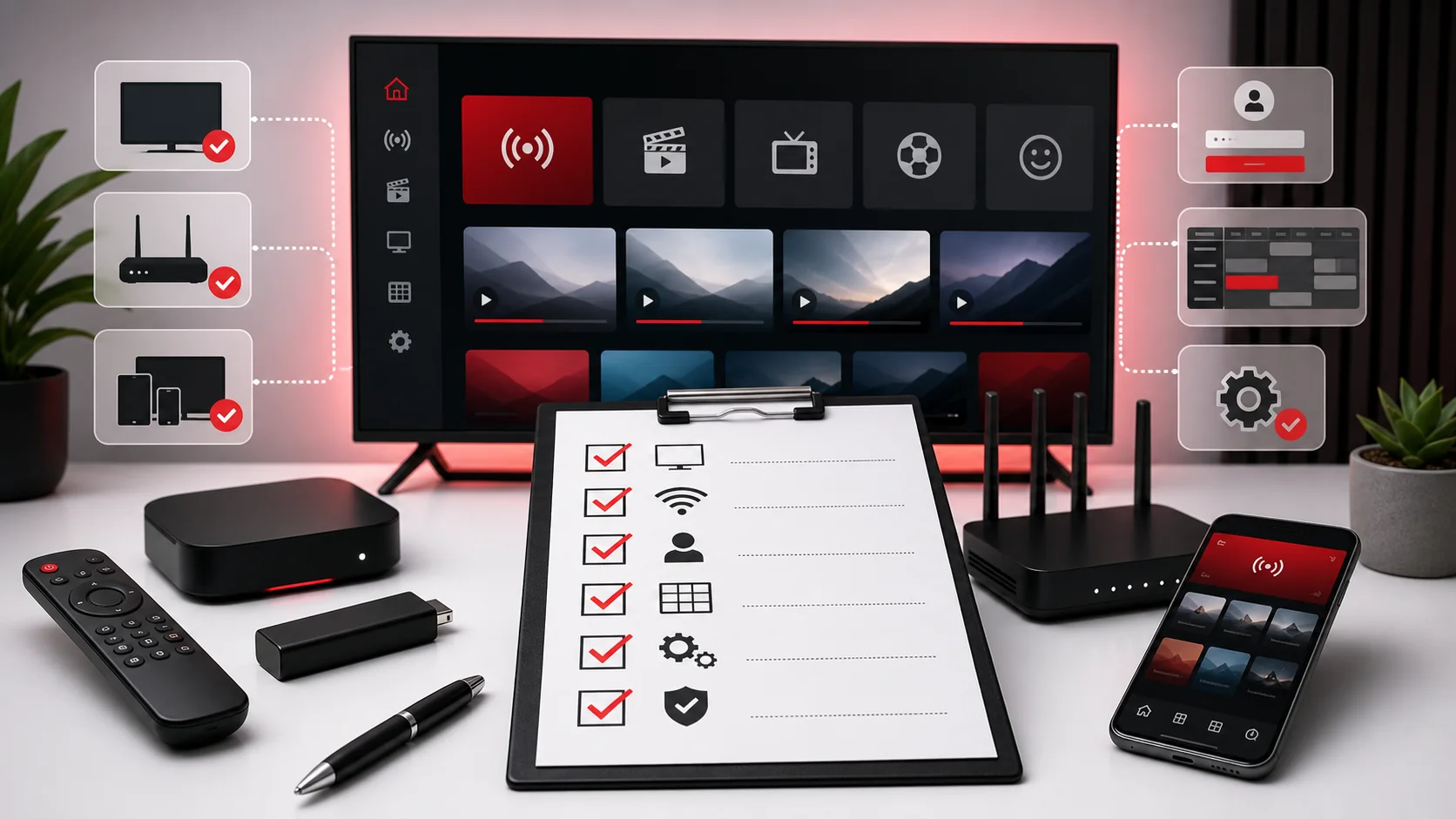
Why an IPTV Setup Checklist Matters
An IPTV setup checklist helps beginners avoid the small mistakes that cause most first-time problems. Many setup issues are not caused by the plan itself. They come from missing app requirements, weak Wi-Fi, wrong login format, unsupported device settings, or confusion about EPG and playlist refresh. Preparing before activation gives you a cleaner first experience.
This checklist is useful before you request a trial, before you choose a subscription, and before you contact support. It helps you collect the exact details support needs: device type, app name, country, internet connection, login format, and the error message if something fails. The more prepared you are, the faster the setup conversation becomes.
Use this guide alongside the full TellyStudio Pro installation guide. If you already know your device, you can also jump directly to the Smart TV setup guide or the Firestick setup guide.
Check Your Device Type First
Start with the exact device name. “TV” is not enough. A Samsung Smart TV, LG Smart TV, Android TV, Fire TV Stick, MAG Box, iPhone, iPad, Windows laptop, and Android phone can all require different setup paths. The app store, login screen, remote control, storage space, and player settings can change from one device to another.
Write down the model if you can find it. On many devices, the model appears in Settings, About, Device Information, or System. If you contact support, share that model name along with your country and preferred app. This small step prevents support from recommending an app or method that does not fit your screen.
If you are still deciding what to use, read the best devices for IPTV comparison. Device choice affects convenience, app availability, and long-term reliability.
Keep this device note somewhere easy to find. If you later renew, change apps, or move from a trial to a paid plan, the same device information helps support continue from the correct context instead of starting the whole conversation again.
Check Internet Speed and Stability
Speed matters, but stability matters more. A connection that measures fast for one minute but drops often can still buffer. Before activation, restart your router, test the device in its normal location, and pause downloads or large updates. If possible, connect Smart TVs, MAG Boxes, Windows computers, and Android TV boxes by Ethernet for the first setup.
If you use Wi-Fi, check whether the signal is strong where the device sits. A streaming stick hidden behind a TV may receive a weaker signal than a phone in your hand. If buffering appears during setup, move the device closer to the router, test another Wi-Fi band, or reduce network load while troubleshooting.
Do not judge the service from a poor network test. If your router is overloaded or far away, fix that first. A stable network gives the app enough time to load categories, guide data, and account information correctly.
Choose the App Before Activation
A good IPTV setup starts with a compatible app. Some apps use playlist URLs, some use username, password, and server fields, and some devices use portal URLs. If you choose an app that does not support the format you receive, setup becomes frustrating even when your account is active.
Check that the app is available in your device store or installation method. Open the app before activation if possible and look at the login screen. If you are unsure, send support a screenshot of the app login fields. That screenshot can quickly show whether you need playlist details, Xtream Codes style details, or portal information.
Avoid unknown apps from suspicious sources. A clean setup is also a safe setup. Use reputable players, keep the app updated, and avoid entering private details into random websites or untrusted forms.
Prepare Login Details Carefully
Most login problems come from tiny errors. A missing slash in a URL, a wrong capital letter, an extra space after a password, or a copied symbol can stop the app from loading. Before you start, keep the support message open on a second device or write the details down carefully.
Enter each item into the correct field. Do not paste a full message into a username field. Do not confuse a playlist URL with a portal URL. If your app asks for a profile name, use a simple label such as TellyStudio Pro so you can identify it later. After saving, wait for the app to finish syncing before closing it.
If login fails more than twice, stop and ask support. Repeatedly deleting profiles and changing settings can create more confusion. A clear screenshot of the login screen and error message is usually more useful than another guess.
Understand EPG Before You Worry
EPG means Electronic Program Guide. It helps compatible apps show schedules where guide data is supported. EPG may not appear instantly after the first login. Some apps need a manual refresh, a few minutes of sync time, or correct time zone settings before the guide looks right.
Before contacting support about EPG, check the app settings, refresh the guide, and confirm that your device date and time are correct. If your clock is wrong, schedules may appear shifted. If the app has multiple EPG options, do not change all of them at once. Test one setting, then observe the result.
Remember that EPG behavior is app-dependent. A missing guide inside one app does not always mean your subscription is inactive. Another compatible app may handle guide data more clearly.
Add EPG to your checklist even if you do not use schedules every day. Confirming guide behavior early helps you understand whether the app is fully ready or whether you should ask support about a better player before committing to longer use.
Common Setup Mistakes to Avoid
The first mistake is activating before choosing an app. The second is testing on the wrong device. The third is entering details while the internet connection is unstable. The fourth is assuming every app uses the same login format. These mistakes are common because beginners try to move quickly instead of preparing the setup environment.
Another mistake is ignoring device storage. Firestick, Android TV boxes, and older phones can struggle when storage is full. Clear unused apps and restart the device before setup. On Smart TVs, close background apps where possible and make sure the TV software is current enough to run your selected player.
Finally, do not change advanced settings randomly. Player engine, buffer size, hardware decoding, and stream format can help in specific cases, but random changes can make troubleshooting harder. If something fails, document what you changed.
When to Contact Support
Contact support when the app rejects correct details, categories remain empty after refresh, EPG will not load after basic checks, playback buffers on a stable network, or the app crashes repeatedly. Use the contact page and include your device, app name, country, order ID if available, and the exact issue.
Good support messages are specific. “Login rejected on Firestick app after entering username, password, and server URL” is much better than “not working.” A useful message saves time and avoids repeated questions. If you are new, check the FAQ page before sending a message because many beginner questions are answered there.
Support can guide you through setup, but it cannot fix a weak router, unsupported app, or incorrect device setting without details. Treat the checklist as your preparation note, then ask for help when the basics are confirmed.
If you are preparing the service for someone else in your home, write down who will use the device most often and what they expect from the setup. A simple living-room setup may need a different app choice than a technical user who enjoys advanced settings.
FAQ
What should I prepare before IPTV activation?+
Prepare your device model, internet connection, compatible app, login format, and support contact details before activation.
Do I need to choose an app first?+
Yes. Choosing the app first helps confirm whether you need playlist, username/password/server, or portal details.
Why is EPG not loading immediately?+
EPG may need a manual refresh, correct time zone, and a few minutes of sync time depending on the app.
Should I restart my router before setup?+
Restarting the router is a useful first step if the connection has been unstable or many devices are using the network.
When should I contact support?+
Contact support when basic checks are complete and you still see login errors, empty categories, buffering, app crashes, or EPG problems.
Final CTA
Use this checklist before requesting activation. If you are unsure about your app, device, or login format, contact support with your setup details.